Removing Malware from a Mac: The Technical Cleanup Process
Standard antivirus tools often miss kernel-level threats that persist across system restarts, requiring manual inspection of launch agents and daemon directories for complete removal.
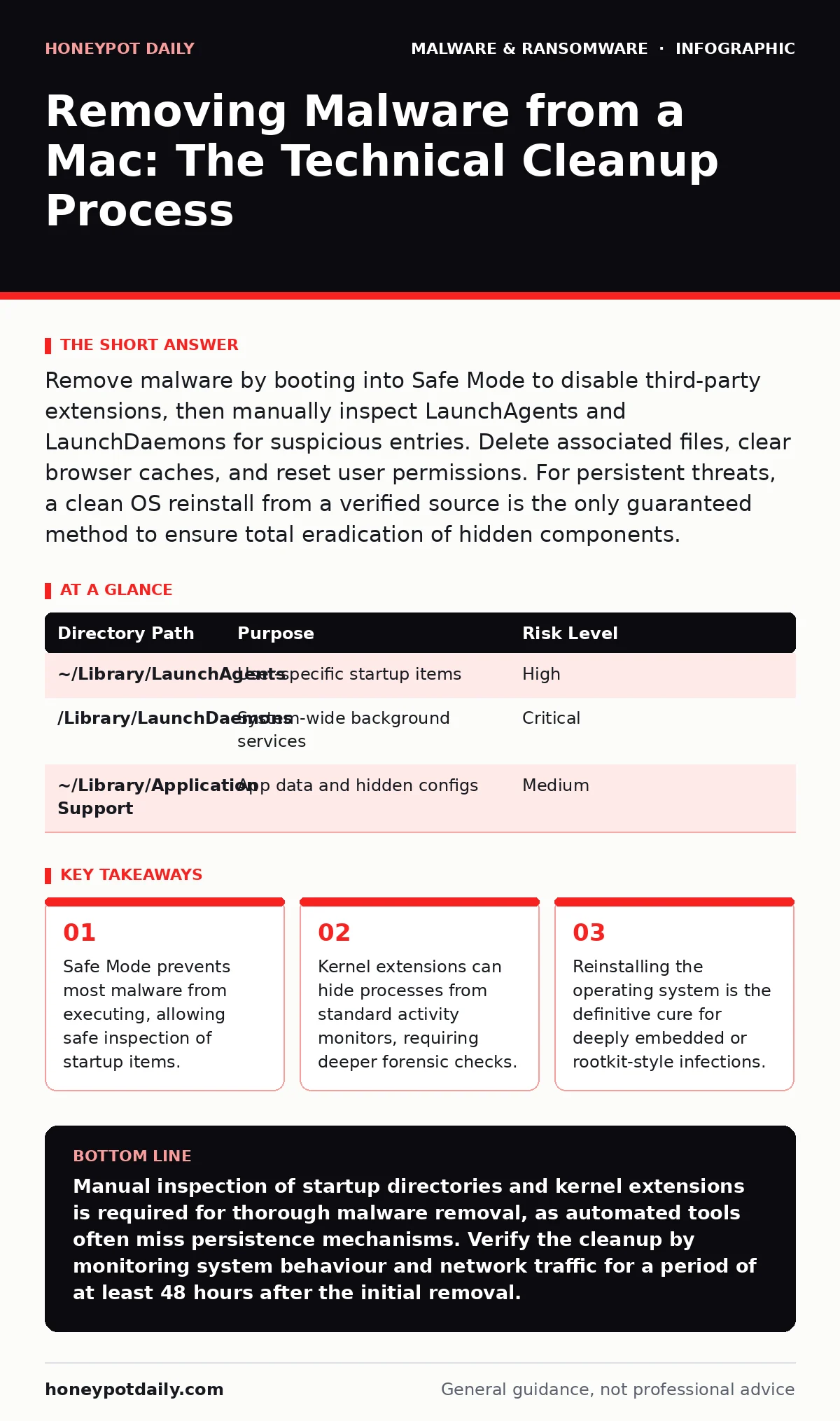
Remove malware by booting into Safe Mode to disable third-party extensions, then manually inspect LaunchAgents and LaunchDaemons for suspicious entries. Delete associated files, clear browser caches, and reset user permissions. For persistent threats, a clean OS reinstall from a verified source is the only guaranteed method to ensure total eradication of hidden components.
Does Safe Mode actually stop malware from running?
Yes, Safe Mode disables all third-party kernel extensions and prevents login items from loading automatically. This isolation lets you inspect the system without the malware actively resisting your actions. Boot into Safe Mode by holding the Shift key during startup on Intel Macs or selecting it from the startup options on Apple Silicon.
This state restricts the system to essential components only. The threat cannot modify its own files or reinstate itself while you work. You gain a clear view of what is present without interference. This method does not delete the malware for you, but it neutralises its ability to fight back during the removal process. It is the first logical step in any serious cleanup operation.
Which folders hide the startup triggers for persistent threats?
You must check two specific directories for launch agents and daemons that restart the malware after every reboot. These are the Library/LaunchAgents and Library/LaunchDaemons folders within your user directory and the system root. Malware often installs XML property list files here to ensure persistence. Delete any file you do not recognise or that points to an executable in an unusual location.
Be careful to distinguish between system files and malicious ones. System daemons usually have standard names and reside in proper application bundles. Suspicious files often have random alphanumeric names or mimic legitimate services with slight spelling variations. Removing these files stops the automatic re-execution of the malicious code.
| Directory Path | Purpose | Risk Level |
|---|---|---|
| ~/Library/LaunchAgents | User-specific startup items | High |
| /Library/LaunchDaemons | System-wide background services | Critical |
| ~/Library/Application Support | App data and hidden configs | Medium |
How do you identify hidden kernel extensions?
Standard activity monitors cannot always show processes running at the kernel level. You need to use terminal commands to list loaded kernel extensions. This reveals drivers or modules that operate below the operating system’s user space. Malware authors use these to hide their presence from standard security tools. Look for extensions with unknown vendors or those signed by untrusted certificates.
If you find a suspicious extension, unload it using the appropriate system command before deleting the file. This action requires administrative privileges and careful verification. Deleting the wrong kernel extension can render the system unbootable. Always verify the source before removing a system-critical component. This step addresses threats that evade traditional next-generation antivirus scans.
Can browser extensions spread malware independently?
Yes, malicious browser extensions can inject scripts into web pages and steal credentials without any other software installed. They operate within the browser’s sandbox but can still exfiltrate data or redirect traffic. Check your browser’s extension manager for any add-ons you did not install personally. Remove them immediately and clear the browser cache to eliminate any injected scripts.
Some extensions persist even after removal by creating their own launch agents. Always check the system startup folders after removing a suspicious extension. This cross-check ensures the extension did not escalate its privileges. For a deeper look at how these add-ons compromise sessions, see our guide on malicious browser extensions.
What indicates a rootkit or firmware infection?
A rootkit hides its presence by hooking into system calls and altering the output of diagnostic tools. If you suspect a rootkit, standard deletion methods will fail because the malware deletes its own traces in real-time. Firmware malware is even more dangerous, residing in the hardware’s embedded controller. This type of infection survives disk wiping and OS reinstalls.
Detection requires specialised forensic tools and often physical hardware inspection. If you suspect firmware compromise, assume the hardware is untrustworthy. The only remediation is replacing the hardware or sending it to a specialist for chip-level reprogramming. Most users will not encounter this, but it is the ultimate persistence mechanism. Refer to our analysis of firmware malware for technical details on these embedded threats.
Is deleting the quarantine folder safe for cleanup?
No, deleting the quarantine folder does not remove active threats and may hinder recovery. The quarantine folder holds files that the system flagged as potentially harmful but did not execute. Deleting it removes the evidence but leaves the active infection intact. Instead, inspect the contents of the quarantine folder to identify what the system blocked. This can provide clues about the source of the infection. Restore legitimate files from quarantine if you are certain they are safe. Do not restore files with unknown origins. This folder is a diagnostic aid, not a containment vessel for active malware. Relying on it for cleanup is a common mistake that leaves the system vulnerable.
How do you verify the malware is fully removed?
Verification requires more than just a visual check of the folders. You must monitor system resource usage for unusual spikes in CPU or network activity. Use network monitoring tools to check for outbound connections to unknown IP addresses. Compare current system files against known good hashes if you have a baseline. Look for new files appearing in the startup directories after you thought you cleaned them.
Persistence is the main challenge, not initial removal. If the malware returns after a reboot, it means you missed a component or a scheduled task. Thorough verification takes time and patience, as threats may remain dormant to avoid detection. See our section on polymorphic malware to understand how some threats change their signature to evade repeated scans.
When is a complete OS reinstall the only option?
A complete reinstall is necessary when you cannot identify all components of the malware or when the system remains unstable after manual removal. This is also the correct choice if you suspect a rootkit or if the malware has modified system binaries. Time is often more valuable than the effort of manual forensic cleanup. A clean install guarantees that no hidden files or registry-like entries remain.
Ensure you backup only your personal data files, not application data or system settings. Restore applications from fresh downloads, not from old backups. This breaks any chain of persistence. For a broader context on threat classification, review our guide on malware families to understand the variety of persistence mechanisms you face.
Does memory forensics help in removing active malware?
Memory forensics helps identify active processes that are not visible in the file system. Some malware lives entirely in RAM and deletes its disk footprint immediately. Traditional file-based scanners miss these threats entirely. By analysing a memory dump, you can find injected code and hidden network connections. This technique is advanced and requires specialised software.
It is not a removal tool but a detection method. Once identified in memory, you must still find the trigger mechanism on disk to prevent recurrence. This approach is useful for sophisticated attacks that evade standard monitoring. Understanding memory forensics provides a deeper layer of assurance in complex incident response scenarios.
Key takeaways
- Safe Mode prevents most malware from executing, allowing safe inspection of startup items.
- Kernel extensions can hide processes from standard activity monitors, requiring deeper forensic checks.
- Reinstalling the operating system is the definitive cure for deeply embedded or rootkit-style infections.
Manual inspection of startup directories and kernel extensions is required for thorough malware removal, as automated tools often miss persistence mechanisms. Verify the cleanup by monitoring system behaviour and network traffic for a period of at least 48 hours after the initial removal.
Frequently asked questions
Can I remove Mac malware without reinstalling the OS?
Yes, most malware can be removed manually by deleting launch agents, daemons, and associated files, but a reinstall is safer for complex or rootkit infections.
Is safe mode enough to clean my Mac?
No, safe mode only stops the malware from running. You must still manually locate and delete the malicious files and startup triggers within that environment.
Do Macs get viruses like Windows computers?
Macs get malware, including trojans and spyware, but traditional file-infecting viruses are rare. The primary risk comes from user-installed malicious applications.
How this guide was produced: written by the Honeypot Daily editorial team with AI assistance, checked against the public references listed below, and reviewed when the facts change. See our editorial policy or report an error.