
Mac Malware Myths: Why Your Mac Is Not Safe By Default
Apple hardware offers strong initial defence but user behaviour and third-party code create persistent gaps that attackers exploit regularly.
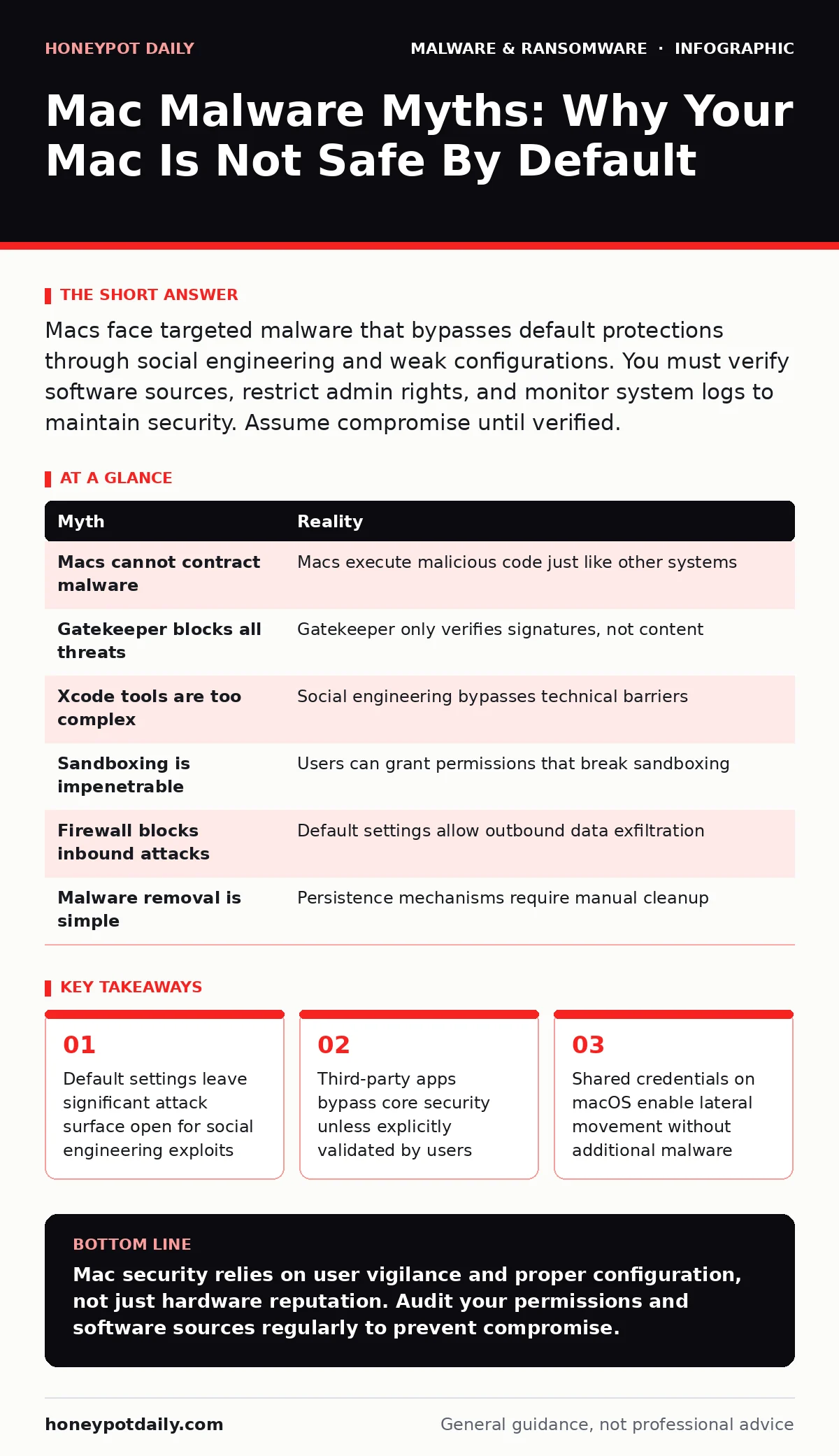
Macs face targeted malware that bypasses default protections through social engineering and weak configurations. You must verify software sources, restrict admin rights, and monitor system logs to maintain security. Assume compromise until verified.
Myth: Macs Cannot Contract Malware
Reality: Apple Silicon and Intel-based Macs execute malicious code just like Windows or Linux systems. The primary difference lies in the attack vector, not the possibility of infection. Attackers target macOS because it shares many architectural similarities with other UNIX-like systems, allowing cross-platform malware to function with minimal modification. The belief that macOS is immune stems from its smaller market share, which historically attracted fewer broad-spectrum viruses.
However, targeted attacks focus on high-value users regardless of operating system popularity. Malware families now include specific modules for macOS to steal credentials, encrypt files, or mine cryptocurrency. You can contract ransomware, spyware, and trojans on a Mac if you execute untrusted code or grant excessive permissions. The operating system provides a secure foundation, but it does not prevent you from voluntarily installing harmful software.
Myth: Gatekeeper Blocks All Threats
Reality: Gatekeeper only verifies code signatures from identified developers or the App Store. It does not scan the content of the application for malicious behaviour. If an attacker signs their malware with a valid certificate, Gatekeeper allows it to run without warning. Even unsigned applications run if you explicitly bypass the warning by using the Control-click method in Finder.
This feature is designed for developer flexibility, but it becomes a security liability for end users who trust every source. Sophisticated actors often use legitimate signing certificates stolen from compromised companies to distribute malware. You must assume that a signed application is not necessarily safe. Combine Gatekeeper with manual verification of download sources and consider using next-generation antivirus to inspect runtime behaviour rather than relying solely on signature checks.
Myth: Xcode Tools Are Too Complex for Attackers
Reality: Attackers do not need to write complex custom exploits to compromise a Mac. They often use social engineering to persuade users to run scripts or install malicious browser extensions. A malicious script executed in Terminal or via a downloaded profile can disable security features, install backdoors, and harvest data without ever touching Xcode.
The complexity of the development environment is irrelevant when the user grants administrator privileges to a fake software update. These updates mimic legitimate prompts, tricking users into entering their passwords. Once the password is provided, the attacker gains full control. The ease of access depends on user caution, not the technical difficulty of writing malware. You should never enter your admin password for unsolicited requests, even if they appear to come from trusted vendors.
Myth: macOS Sandboxing Is Impenetrable
Reality: Sandboxing restricts applications to limited resources, but it only applies to apps that opt in or are required to. Many legacy applications and user-installed tools run without sandbox restrictions. Even within a sandbox, an application can communicate with other processes or access files if the user grants explicit permission. Attackers exploit these permission prompts to escape confinement.
For example, a seemingly harmless utility might request access to your Documents folder, allowing it to read sensitive files. Once inside, it can exfiltrate data or install additional payloads. Sandboxing reduces the blast radius of a compromise but does not eliminate it. You must treat each permission request as a potential security boundary breach. Review app permissions regularly in System Settings to revoke access for unused applications.
Myth: Built-in Firewall Protects Against Inbound Attacks
Reality: The default macOS firewall is often disabled or configured to allow incoming connections for most applications. While it blocks unsolicited inbound traffic by default, many malware strains operate entirely outbound, connecting to command and control servers. The firewall does not inspect outbound traffic by default, meaning infected Macs can silently send data to attackers.
Furthermore, if you install software that requires inbound connections, such as file sharing or remote management tools, you may inadvertently open ports to the network. Attackers scan for these open ports to exploit vulnerabilities. You should enable the firewall for all incoming connections and review the list of allowed applications. Consider configuring advanced rules to block unnecessary outbound connections, though this requires careful management to avoid breaking legitimate functionality.
Myth: Malware Removal Is Simple
Reality: Removing malware from a Mac often requires more than deleting the application file. Malware installs persistence mechanisms such as launch agents, launch daemons, and kernel extensions that survive standard deletion. These components restart the malware on every boot. Some strains also modify system libraries or hide in hidden directories, making them difficult to detect with basic tools.
Manual removal involves checking multiple system locations, verifying file integrity, and ensuring no residual processes remain. If you are unsure of the correct steps, you risk leaving fragments that can reactivate later. Consult detailed guides on removing malware from a Mac to ensure complete eradication. Regularly audit your system for unknown launch items and unused kernel extensions to maintain a clean environment.
| Myth | Reality |
|---|---|
| Macs cannot contract malware | Macs execute malicious code just like other systems |
| Gatekeeper blocks all threats | Gatekeeper only verifies signatures, not content |
| Xcode tools are too complex | Social engineering bypasses technical barriers |
| Sandboxing is impenetrable | Users can grant permissions that break sandboxing |
| Firewall blocks inbound attacks | Default settings allow outbound data exfiltration |
| Malware removal is simple | Persistence mechanisms require manual cleanup |
Key takeaways
- Default settings leave significant attack surface open for social engineering exploits
- Third-party apps bypass core security unless explicitly validated by users
- Shared credentials on macOS enable lateral movement without additional malware
- Regular log analysis reveals persistence mechanisms that scanners miss
Mac security relies on user vigilance and proper configuration, not just hardware reputation. Audit your permissions and software sources regularly to prevent compromise.
Frequently asked questions
Does macOS have built-in ransomware protection?
macOS includes some protections like Folder Access controls and Time Machine snapshots, but these are not foolproof ransomware defenses. You must maintain immutable backups to ensure recovery capability.
Can a Mac virus spread to a Windows PC?
Most malware is platform-specific, but some cross-platform variants exist. If you share files between Mac and Windows systems, scan them on both platforms to prevent accidental spread.
Is it safe to install apps outside the App Store?
Installing apps outside the App Store increases risk because they bypass Apple's review process. Verify the developer's identity and check code signatures before installing any third-party software.
How do I know if my Mac has polymorphic malware?
Polymorphic malware changes its code signature to avoid detection. Standard antivirus may miss it. Look for unusual network traffic, high CPU usage, or unknown processes in Activity Monitor.
How this guide was produced: written by the Honeypot Daily editorial team with AI assistance, checked against the public references listed below, and reviewed when the facts change. See our editorial policy or report an error.