Browser-in-the-Browser Mistakes That Bypass MFA
Fake login windows overlay your real browser to steal credentials, rendering standard multi-factor authentication useless if you cannot spot the visual deception.
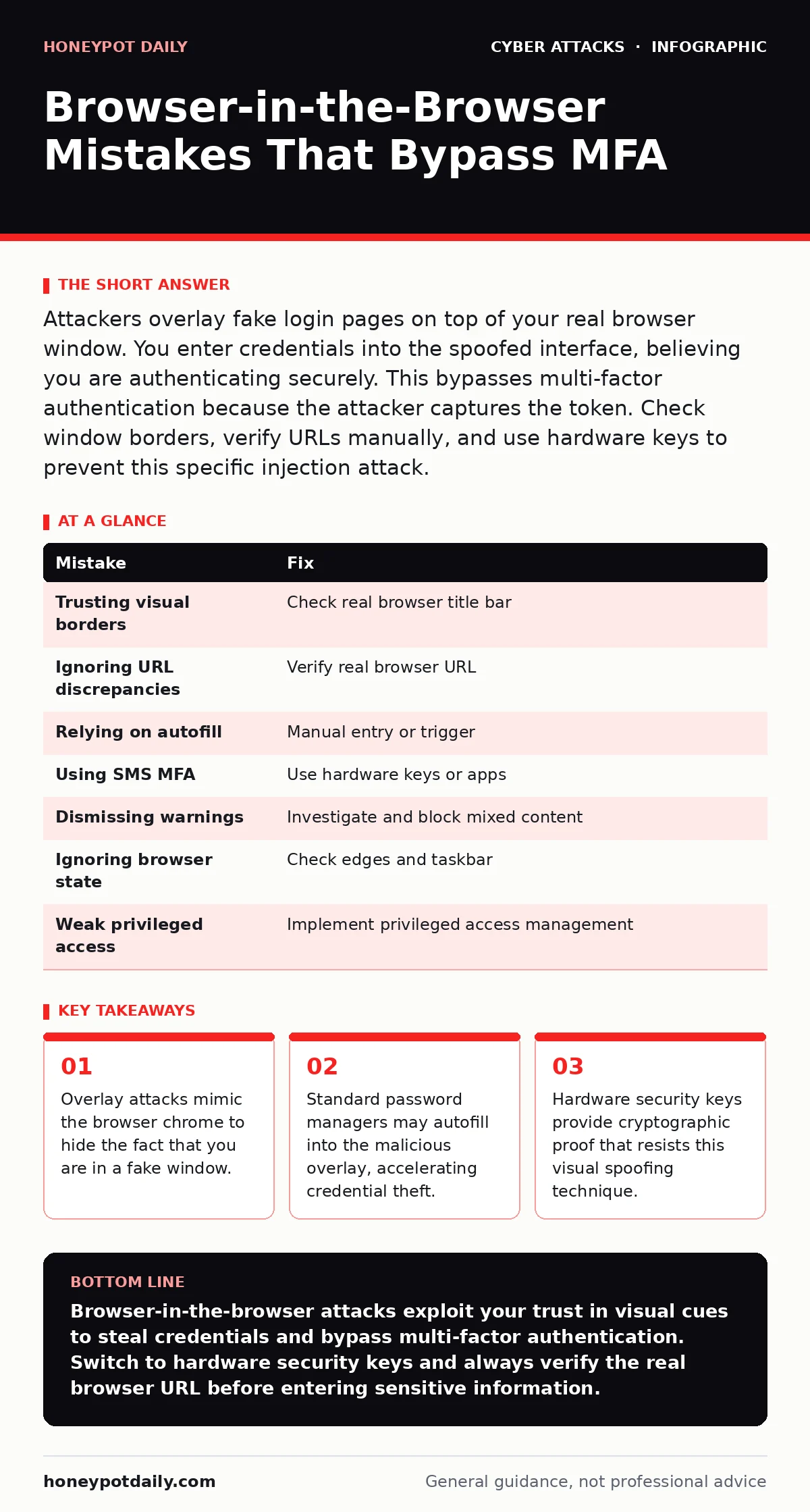
Attackers overlay fake login pages on top of your real browser window. You enter credentials into the spoofed interface, believing you are authenticating securely. This bypasses multi-factor authentication because the attacker captures the token. Check window borders, verify URLs manually, and use hardware keys to prevent this specific injection attack.
Mistake 1: Trusting the visual border of the window
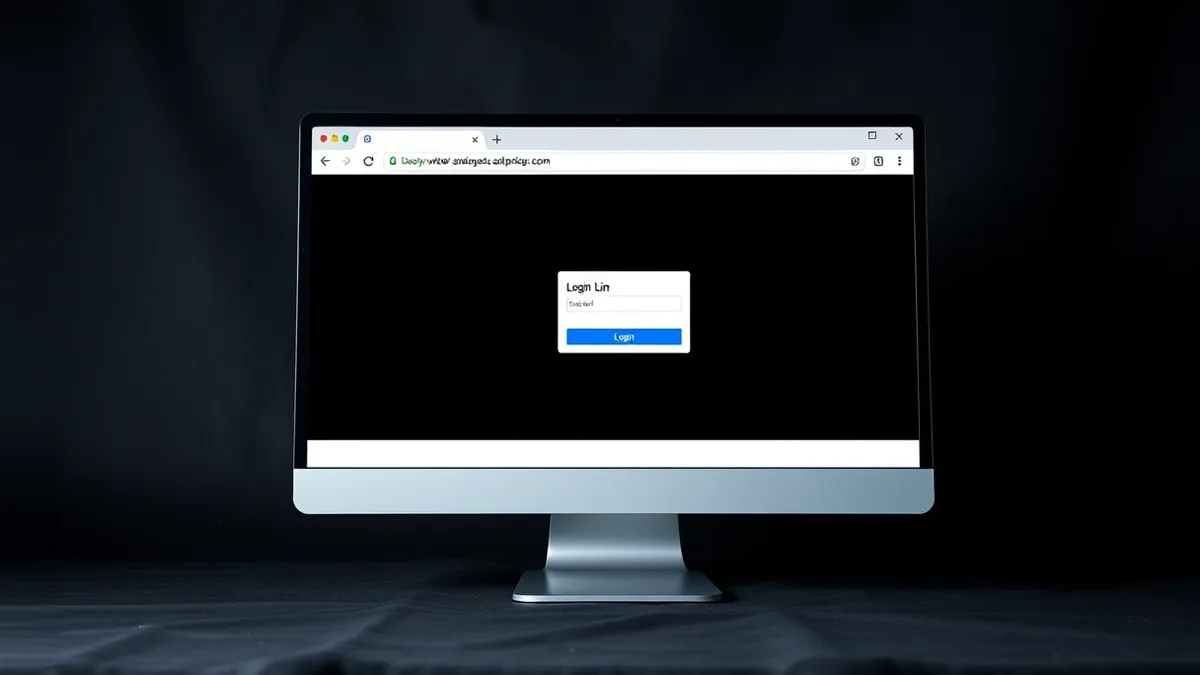
You assume that any window displaying the familiar browser address bar and tabs is genuine. Attackers use a technique called browser-in-the-browser to render a fake browser window inside your actual browser. This fake window includes its own address bar, tabs, and even scrollbars. It looks identical to your real browser because it is rendered within it. The visual cues you rely on for trust are completely fabricated by the attacker's code.
Why it hurts:
The overlay window captures every keystroke you type. It intercepts your username, password, and multi-factor authentication codes before they reach the legitimate service. The attacker does not need to break encryption or exploit a server vulnerability. They simply trick you into handing over active session tokens. Your multi-factor authentication becomes irrelevant because the attacker receives the valid token directly from your input.
The fix:
Do not trust the visual appearance of the window. Hover your mouse cursor over the address bar of the overlay. If the cursor does not change to a text selection icon, the bar is an image. Move your mouse to the very top of your screen to find the real browser title bar. Compare the URL in the real browser with the URL in the overlay. If they differ, close the tab immediately.
Mistake 2: Ignoring URL discrepancies in the overlay
You glance at the address bar provided by the phishing site and see the correct domain name. The attacker has carefully crafted the fake browser window to display the exact URL of the service you intend to visit. This is a deliberate design choice to reduce cognitive load and increase trust. You do not notice that this URL is merely text rendered on a canvas, not the actual location of the web page.
Why it hurts:
The real browser is actually loading a malicious script from a completely different domain. The script generates the fake login page and captures your input. By focusing on the fake URL, you miss the fact that your browser is communicating with an attacker-controlled server. This allows the attacker to execute arbitrary code in your session while you believe you are interacting with a trusted service.
The fix:
Always verify the URL in the real browser window frame, not the one inside the page. Look at the topmost bar of your operating system or the true browser chrome. If the real URL is a random string or an unfamiliar domain, you are under attack. Bookmark critical services and navigate to them via bookmarks rather than clicking links in emails or messages.
Mistake 3: Relying on password manager autofill
You let your password manager automatically fill in credentials when it detects a login form. Modern password managers are smart enough to recognise the structure of a login page. They will autofill your username and password into the fake browser window if it matches the pattern of the legitimate site. This convenience feature becomes a significant security liability in this scenario.
Why it hurts:
The attacker receives your stored password instantly. You do not have the opportunity to notice anything unusual because the fields populate before you can inspect the page. This accelerates the attack and reduces the time you have to react. It also confirms to the attacker that your password manager has credentials for this service, making you a higher-value target for further social engineering.
The fix:
Disable autofill for sensitive accounts or configure your password manager to require a manual trigger. Type your credentials manually to verify the context. If your password manager warns that the site looks different or the URL is unknown, heed the warning. Consider using a separate vault for high-privilege accounts that requires explicit user confirmation before any data is released.
Mistake 4: Using SMS-based multi-factor authentication
You receive a one-time code via text message and enter it into the fake login window. The attacker is waiting for this code. They display a prompt in the overlay asking for your multi-factor authentication code. Because the overlay captures your input in real-time, they receive the code immediately after you type it. They then use it to complete the login on the real service.
Why it hurts:
SMS codes are vulnerable to interception and relay attacks. In this scenario, the code is not intercepted in transit but is handed over willingly by the user. The attacker completes the authentication flow within seconds. You may receive a notification that you have logged in from a new device, but by the time you check it, the attacker has already accessed your account or initiated a transfer.
The fix:
Stop using SMS for multi-factor authentication on critical accounts. Switch to an authenticator app that generates time-based one-time passwords. Better yet, use a hardware security key. These keys perform a cryptographic challenge-response protocol that cannot be faked by a simple overlay. The attacker cannot replicate the physical presence of the key to complete the authentication.
Mistake 5: Dismissing browser warnings as false positives
Your browser displays a warning about mixed content or an insecure element. You dismiss the warning because you are in a hurry or believe the site is trusted. The warning often appears because the phishing script is loading resources from multiple domains or using non-standard rendering techniques to create the overlay. These warnings are indicators of unusual activity.
Why it hurts:
Ignoring these warnings allows the malicious script to continue executing. The script may also attempt to exploit other vulnerabilities in your browser or plugins. By dismissing the warning, you remove a layer of defence that could have alerted you to the presence of the overlay. This normalises risky behaviour and makes you less likely to investigate similar anomalies in the future.
The fix:
Investigate every browser warning. Do not click "Proceed anyway" unless you have a specific reason to trust the content. Check the source of the warning. If it mentions mixed content or insecure scripts, close the tab. Configure your browser to block mixed content by default. This prevents the attacker from loading the components needed to render the fake browser window.
Mistake 6: Failing to verify the real browser state
You focus entirely on the content of the page and ignore the state of the real browser. The real browser may show a loading spinner, a blank page, or a different tab in the background. The overlay covers most of the screen, but the edges of the real browser window remain visible. These edges provide critical context about what is actually happening.
Why it hurts:
The attacker relies on your tunnel vision. By covering the screen with the fake window, they hide the fact that the real browser is doing something else. You miss the opportunity to see the true URL or the real page content. This allows the attack to proceed unnoticed. You may not realise you have been compromised until you see unauthorised activity in your account.
The fix:
Look at the edges of the screen. Check the taskbar or dock for the real browser window. If the real browser shows a different URL or a blank page, you are looking at an overlay. Move the fake window around to see if it behaves like a native application or a web element. Native windows snap to edges and resize differently than web overlays.
Mistake 7: Not using privileged access management
You access high-privilege accounts with the same credentials and methods as standard accounts. These accounts hold the keys to your organisation's most sensitive data. If an attacker compromises these accounts via a browser-in-the-browser attack, the impact is severe. They can move laterally, exfiltrate data, or disable security controls.
Why it hurts:
The blast radius of a compromised privileged account is enormous. The attacker gains access to systems that should be protected by additional layers of security. Standard multi-factor authentication is not enough for these accounts. The attacker can bypass standard controls and cause significant damage before detection. This mistake amplifies the consequences of the initial phishing attack.
The fix:
Implement privileged access management for all high-privilege accounts. This includes just-in-time access, session recording, and additional verification steps. Use hardware security keys for all privileged logins. Monitor access to these accounts closely. Integrate with security operations centers to detect anomalous login patterns. Refer to our guide on privileged access management for detailed implementation steps.
| Mistake | Fix |
|---|---|
| Trusting visual borders | Check real browser title bar |
| Ignoring URL discrepancies | Verify real browser URL |
| Relying on autofill | Manual entry or trigger |
| Using SMS MFA | Use hardware keys or apps |
| Dismissing warnings | Investigate and block mixed content |
| Ignoring browser state | Check edges and taskbar |
| Weak privileged access | Implement privileged access management |
Key takeaways
- Overlay attacks mimic the browser chrome to hide the fact that you are in a fake window.
- Standard password managers may autofill into the malicious overlay, accelerating credential theft.
- Hardware security keys provide cryptographic proof that resists this visual spoofing technique.
Browser-in-the-browser attacks exploit your trust in visual cues to steal credentials and bypass multi-factor authentication. Switch to hardware security keys and always verify the real browser URL before entering sensitive information.
Frequently asked questions
Can antivirus software detect browser-in-the-browser attacks?
Traditional antivirus may not detect the attack because it involves legitimate browser rendering techniques. The malicious script runs in the browser context, which is often whitelisted. Endpoint detection and response tools may flag unusual browser behaviour, but they cannot prevent the user from entering credentials into the fake window.
Do browser extensions help prevent this attack?
Some security extensions can detect known phishing domains or unusual rendering patterns. However, they are not foolproof and may be disabled by the attacker. Relying solely on extensions is risky. Hardware security keys provide a more reliable defence because they require physical interaction and cryptographic binding to the real domain.
How do I recover if I have already entered credentials?
Change your password immediately on a different device. Revoke active sessions for that account. Enable multi-factor authentication if it was not already active. Monitor the account for unauthorised activity. Report the incident to your security team. Refer to our guide on account lockout policies for further steps.
Are mobile devices vulnerable to this attack?
Mobile browsers are less susceptible to overlay attacks due to different rendering engines and user interfaces. However, attackers can use other techniques to steal credentials. Always verify the URL and use hardware security keys or authenticator apps. Avoid entering sensitive information on untrusted networks.
How this guide was produced: written by the Honeypot Daily editorial team with AI assistance, checked against the public references listed below, and reviewed when the facts change. See our editorial policy or report an error.