Account Lockout Policies: Implementation, Testing and Maintenance
Incorrectly configured lockout thresholds allow attackers to enumerate valid usernames before they ever need to guess a password.
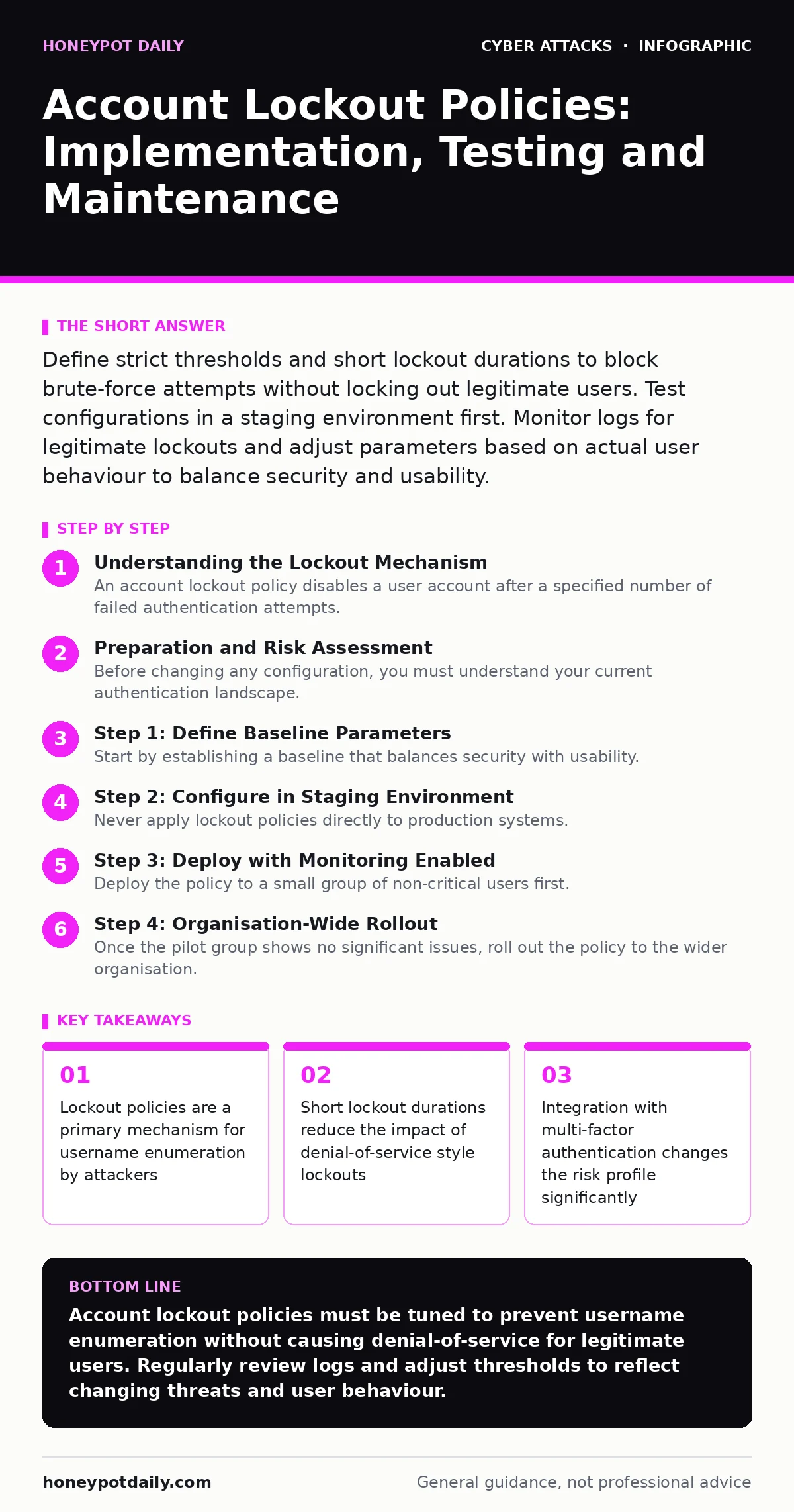
Define strict thresholds and short lockout durations to block brute-force attempts without locking out legitimate users. Test configurations in a staging environment first. Monitor logs for legitimate lockouts and adjust parameters based on actual user behaviour to balance security and usability.
Understanding the Lockout Mechanism
An account lockout policy disables a user account after a specified number of failed authentication attempts. The mechanism exists to slow down automated tools that try thousands of password combinations. It forces an attacker to pause, change their IP address, or use a different identity, increasing the time and cost required to breach an account.
The policy involves three main parameters. The threshold is the number of failed attempts allowed before locking. The duration is how long the account remains locked. The reset interval is the time after which the failed attempt counter returns to zero. These settings interact in ways that often surprise administrators.
If the threshold is too high, an attacker can guess many passwords before the lock triggers. If it is too low, a single typo by a legitimate user causes an outage. The reset interval is often misunderstood. If it is shorter than the lockout duration, the counter resets while the account is still locked, creating a window where the user can fail again immediately after unlocking.
Preparation and Risk Assessment
Before changing any configuration, you must understand your current authentication landscape. Identify which systems enforce local lockouts and which rely on a central identity provider. Centralised systems allow for consistent policies, while local systems often have silent defaults that vary by operating system version.
Consider the impact on services that run under service accounts. These accounts often have scripts that authenticate automatically. If a script fails due to a network glitch or a changed password, a lockout policy will disable the service until an administrator manually resets it. This is a hidden cost of aggressive policies.
Review your incident response plans for procedures related to account lockouts. If a large number of accounts lock simultaneously, it may indicate a coordinated attack or a systemic issue with a shared password. Your team needs a playbook to distinguish between a user who forgot their password and a credential stuffing attack.
Step 1: Define Baseline Parameters
Start by establishing a baseline that balances security with usability. A common starting point is five failed attempts before lockout. This number is low enough to stop casual guessing but high enough to accommodate occasional typos. The lockout duration should be short, typically one to five minutes. This minimises the chance of a denial-of-service attack where an attacker locks out legitimate users.
The reset interval should match or exceed the lockout duration. This ensures that once an account unlocks, the counter has cleared. If the counter persists, the user might lock themselves out again immediately upon trying to log in with the correct password after a brief pause.
Document these decisions. You will need to justify them when tuning later. If you choose a lower threshold, such as three attempts, you must have a robust method for users to recover access quickly, such as a self-service password reset tool.
Step 2: Configure in Staging Environment
Never apply lockout policies directly to production systems. Configure the parameters in a staging environment that mirrors your production setup. This includes the same identity provider, directory services, and authentication protocols.
Create test accounts with known passwords. Use automated scripts or manual attempts to trigger the lockout threshold. Observe exactly when the lock occurs. Check if the lock applies to all authentication methods, including API keys, tokens, and interactive logins. Some systems treat service principals differently from human users.
Verify the reset behaviour. Wait for the reset interval to pass and attempt a failed login. Then wait for the lockout duration and attempt a successful login. Confirm that the account unlocks and the counter resets as expected.
Step 3: Deploy with Monitoring Enabled
Deploy the policy to a small group of non-critical users first. This allows you to catch unforeseen interactions with existing tools. Monitor authentication logs closely for this group. Look for patterns of failed attempts that do not result in lockouts, which may indicate configuration errors.
Check for legitimate lockouts. If users are locking themselves out frequently, your threshold may be too low, or your user education on password entry may be insufficient. Consider if multi-factor authentication is in use. If users often fail the second factor, some systems count this as a failed authentication attempt, leading to unexpected lockouts.
See also: Privileged Access Management: Definition, Purpose and Mechanics · Stop Authorization Bypass Vulnerabilities: Prevention Priorities
Step 4: Organisation-Wide Rollout
Once the pilot group shows no significant issues, roll out the policy to the wider organisation. Communicate the change to users. Explain that their account will lock after five failed attempts and how long it will remain locked. Provide clear instructions on how to contact support if they are locked out.
Enable alerts for lockout events. A sudden spike in lockouts can indicate a phishing simulation or a real attack. If you use phishing simulations, ensure the simulation platform does not trigger real lockouts. Some platforms mimic login pages but do not submit credentials to the actual identity provider, avoiding lockouts. Others may, causing confusion and unnecessary support tickets.
Verification Checklist
- Threshold is set to five failed attempts
- Lockout duration is between one and five minutes
- Reset interval matches or exceeds lockout duration
- Service accounts are exempt or have high thresholds
- Alerts are configured for high volumes of lockouts
- Users have been notified of the policy change
- Self-service recovery options are tested and working
Upkeep and Tuning
Lockout policies are not static. Review the parameters quarterly. Analyze lockout logs to see if legitimate users are being impacted. If a specific department has a high rate of lockouts, investigate whether they use a shared account or have a tool that authenticates repeatedly.
Adjust thresholds based on threat intelligence. If you see a rise in brute-force attacks against your organisation, you may lower the threshold temporarily. Ensure that any changes are communicated and monitored.
Integrate lockout data with your broader security monitoring. A single lockout is noise. A pattern of lockouts across multiple accounts from the same source is a signal. Correlate this with other indicators, such as failed logins from unusual geolocations.
Interaction with Multi-Factor Authentication
If you use multi-factor authentication, understand how your system counts failures. Some systems lock the account after five failed password attempts, regardless of the second factor. Others lock after five failed attempts at the second factor. This distinction matters.
If the second factor fails, the user is often not at fault. They may have lost their phone or have poor connectivity. Locking the account in this scenario creates frustration. Configure your system to distinguish between password failures and second-factor failures where possible.
This complexity is why privileged access management solutions are often used for administrative accounts. These accounts have stricter controls and often use just-in-time access, reducing the window of opportunity for attackers. For general users, a balanced approach is necessary.
Long-Term Maintenance
Keep your authentication logs intact for auditing purposes. You may need to review them during an incident investigation. Ensure that the logs capture the source IP, timestamp, and result of each authentication attempt.
Regularly review the list of service accounts. As applications change, new service accounts may be created without proper lockout considerations. Ensure that any new service account has a policy that matches its usage pattern.
If you migrate identity providers or change authentication protocols, re-test the lockout policy. New systems may have different defaults or behaviours. Do not assume that the policy transfers automatically.
Key takeaways
- Lockout policies are a primary mechanism for username enumeration by attackers
- Short lockout durations reduce the impact of denial-of-service style lockouts
- Integration with multi-factor authentication changes the risk profile significantly
Account lockout policies must be tuned to prevent username enumeration without causing denial-of-service for legitimate users. Regularly review logs and adjust thresholds to reflect changing threats and user behaviour.
Frequently asked questions
Do account lockout policies prevent credential stuffing?
They slow down credential stuffing by forcing pauses, but they do not stop it entirely. Attackers can distribute attempts across many accounts or use proxy networks to avoid triggering locks.
How do lockout policies affect service accounts?
Service accounts can be locked if they fail authentication repeatedly. This can disrupt automated processes. It is best to exempt service accounts or use certificates instead of passwords for authentication.
Can attackers use lockouts to deny service?
Yes, an attacker can intentionally trigger lockouts for legitimate users. This is a denial-of-service attack. Short lockout durations and monitoring for unusual lockout patterns help mitigate this risk.
Should I lock out after failed multi-factor attempts?
Generally, no. Second-factor failures are often due to user error or device issues. Locking the account for these failures creates unnecessary friction. Focus lockouts on password failures.
How this guide was produced: written by the Honeypot Daily editorial team with AI assistance, checked against the public references listed below, and reviewed when the facts change. See our editorial policy or report an error.